The purpose of an Event page
You should use an Event page to promote a University-related event. When creating an Event in Typecase you can choose to either:
- create a dedicated webpage for your event, or
- list essential event information and link to a webpage on another website
The content type template provides components for you to add all essential information, such as the time, date and location of the event, the price for attendees and the hosts or speakers who will be attending.
Event pages should provide users with the essential information they need to attend the event. If you have extra information, such as a lengthy timetable of talks or activities, publish this on a separate Corporate information page and link to it from the Event page.
Read more about choosing a content type for your web content.
Appearance
Event pages have a large purple banner across the Title and Summary. This helps users to identify them as Events as no other pages on the University website have this feature.
All essential information, including the time, date, location and cost of the event, is displayed at the top of the page, so users can find it easily.
Examples of Events
View the full list of upcoming University events.
Accessibility
You must make sure your content is accessible.
As a public sector body, we're legally required to make the content on our website as accessible as possible. The government checks our content to make sure it complies with the internationally recognised guidelines from the World Wide Web Consortium (W3C).
Find out more about accessibility or contact beta-content@bath.ac.uk if you have any questions.
Creating content
Subtype
Choose the subtype which best describes your event. Typecase uses this to categorise your page, making it easier for users to find.
Core components
Your page must have a User need, Title, Summary, Navigation and Owning organisation or group.
Read more about core components.
Labels
You can add Labels to your page if you're an Editor or Admin, but you don’t need to add Labels and should only use them to:
- pin content to a Topic page
- create a filtered list of related pages
Don't use Labels for any other reason. Labels don't function like search keywords or tags on a blog. If you use Labels incorrectly, your content could appear in the wrong place on the website.
Find out more about using Labels in Typecase.
Adding event information
Date and time
Use the drop-down menus in the Date and time component to add the date, time, and time zone for your event. If the event is less than one day, put the same date in the 'Start' and 'End' fields.
The time zone will automatically update to the correct time if the clocks change. For example, choosing '(GMT+00:00) London' will update to 'BST (GMT+01:00)' on the live page during British Summer Time.
 The Date and time component in Typecase.
Event status
The Event status component tells users whether the event is scheduled, cancelled, postponed, or rescheduled. It displays text on the Event page, filtered lists, and where the Event is pinned to an Upcoming events component.
If you need to change the Event status, republish the page until after the original event date so users can see the new status.
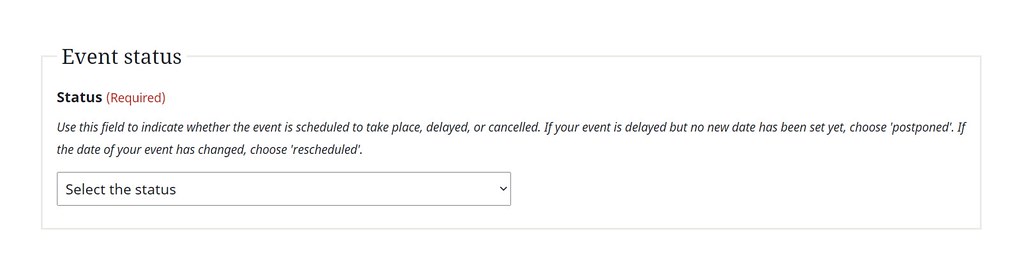 The Event status component in Typecase.
Audience
Select whether the event is for:
- everyone
- staff
- students
- staff and students
If the event is only open to people with an invitation, select 'yes' under 'Invitation only'.
 The Audience component in Typecase.
Link only
If you have a page for your event on an external website, like Eventbrite, you can create a link-only Event. This means your event won't have a page on the website, just a link that you can pin to the Upcoming events component on a Topic page or Landing page. The link to your event will also be visible at bath.ac.uk/events.
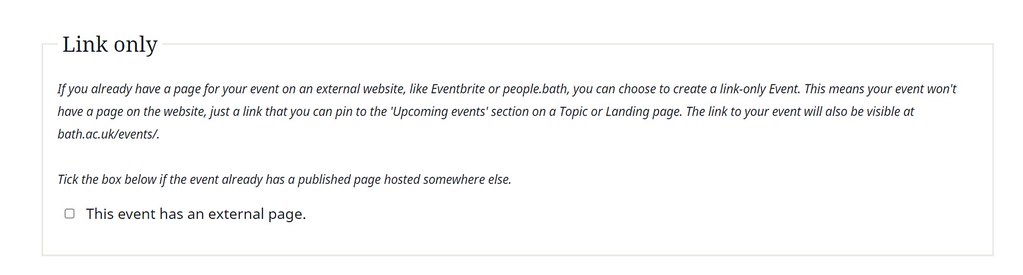 The Link only component in Typecase.
Price
Use the drop-down menu in the Price component to tell users how much they need to pay for the event.
Add the currency and the minimum and maximum ticket prices.
If there is one price for everyone, just use the 'minimum' field.
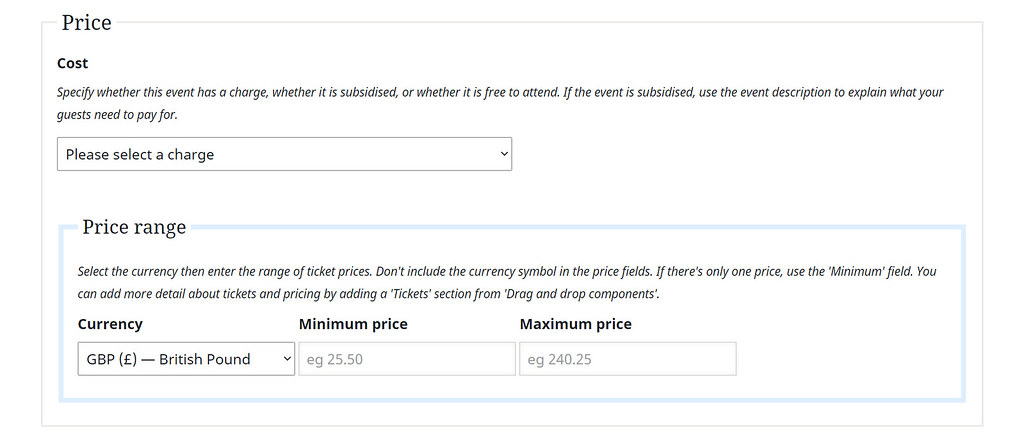 The Price component in Typecase.
Top of page fixed-position components
You can use the Focus component to add an image to your Event.
You must make your images accessible.
Drag and drop components
Find out about using the:
Speakers
Use the Speakers component to list up to six speakers at your event.
You can add each speaker’s name, photo, and a web address. You can also add a Related content button that links to more information about the speakers.
Tickets
Use the Tickets component to list different ticket options.
You can add six ticket types for each event. Each entry includes a description, like ‘advanced booking’, additional information, a currency, and a price range. For events with only one ticket type, use the Price component.
Bottom of page components
You must add a Contact details component and a Location component to your Event.
The Location component lets you specify whether your Event is:
- in-person only
- online only
- in-person with an online option
You can also add a Call to action component to your Event if needed.
Promoting your event
You can promote Event pages on various pages on the University website using the Upcoming events component.
View all upcoming Event pages at bath.ac.uk/events/.
If you create an Event page, you are responsible for unpublishing it when the event has passed. You should also:
- remove it from any Upcoming events components you own
- request other organisations in Typecase remove it from any of their Upcoming events components